
How to Import Content from Microsoft Word
Let us help! If you have drafted content for an open textbook in Microsoft Word, contact us at digitalscholarship@macewan.ca. Our staff can help reformat the text in the Text editor in Pressbooks to avoid formatting issues that can arise when importing a Word document into Pressbooks (as described below) or cutting and pasting content directly into Pressbook’s default Visual editor.
MS Word Import Instructions
Pressbooks includes a feature that allows authors to import content from MS Word into Pressbooks, however, it is not a precise import and chances are there will have to be work done in Pressbooks to fix formatting issues, especially if the Word document was heavily formatted.
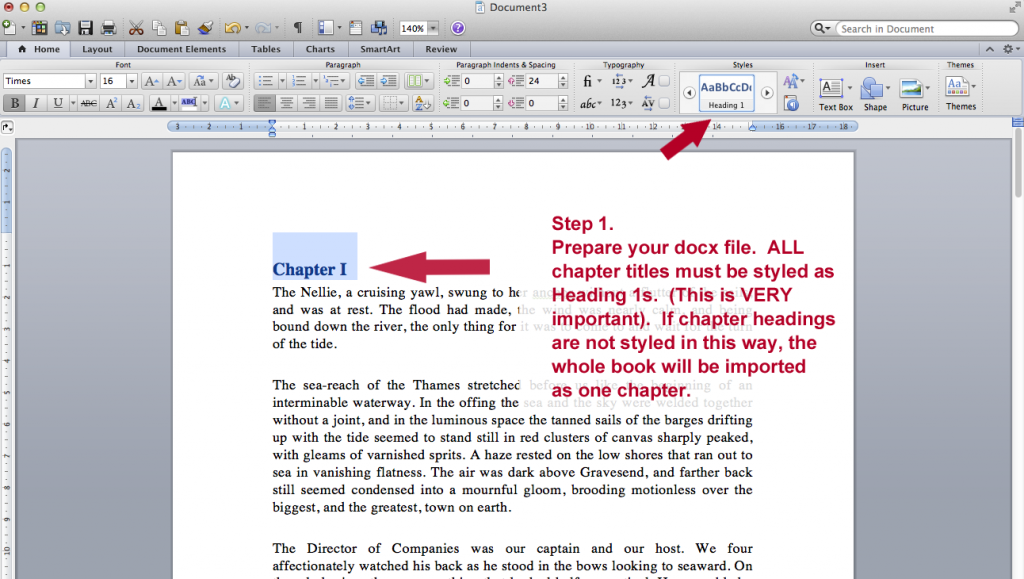
Step 1. Prepare your .docx file
Note: Chapter headings in your docx **MUST** be tagged as **Heading1** (otherwise chapters won’t be recognized)
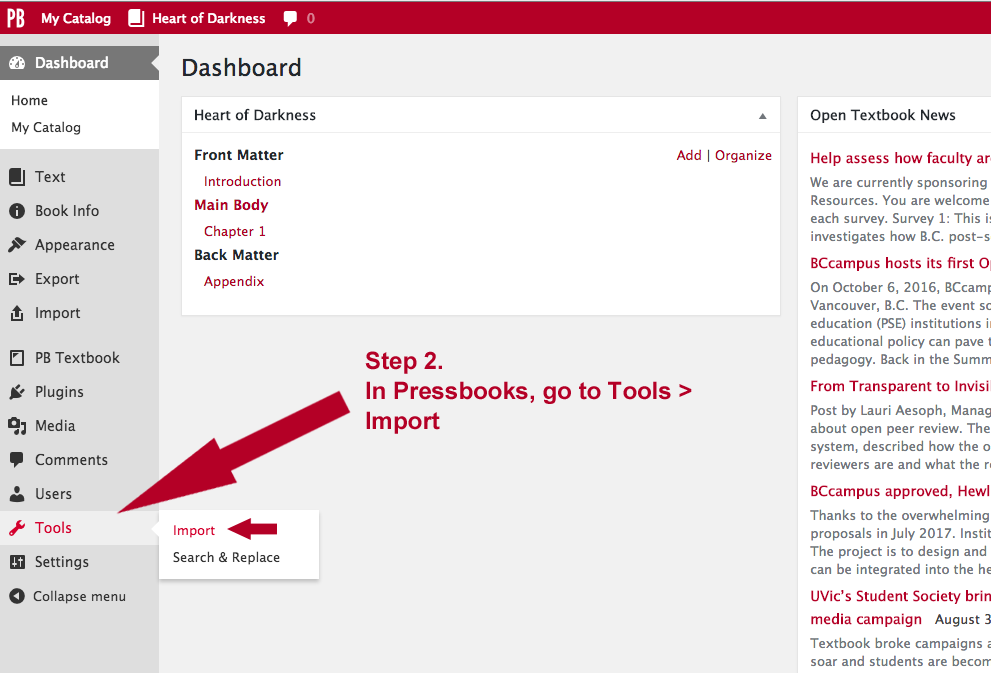
Step 2. In Pressbooks, go to: Left Menu/Tools—> Import
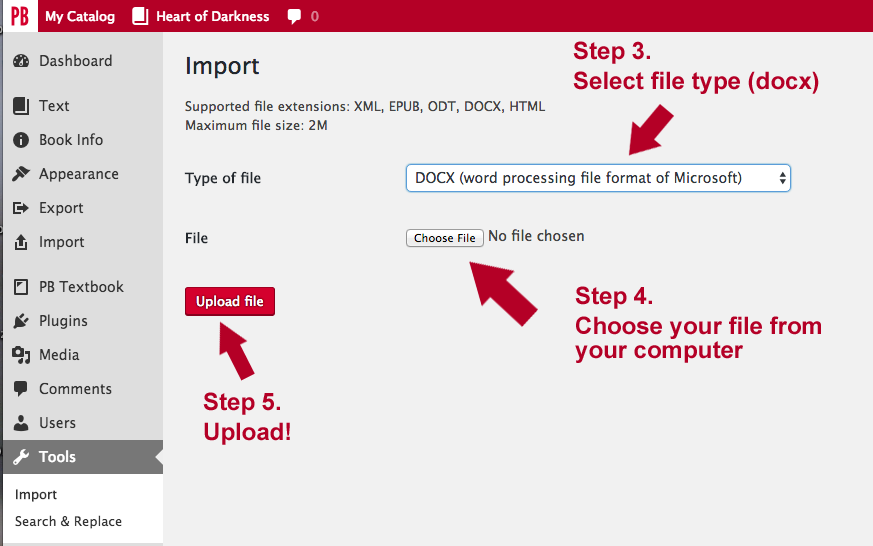
Steps 3, 4 & 5: Select your file type, choose file and upload
Steps 6, 7, 8: Select your content, decide what it is, and import
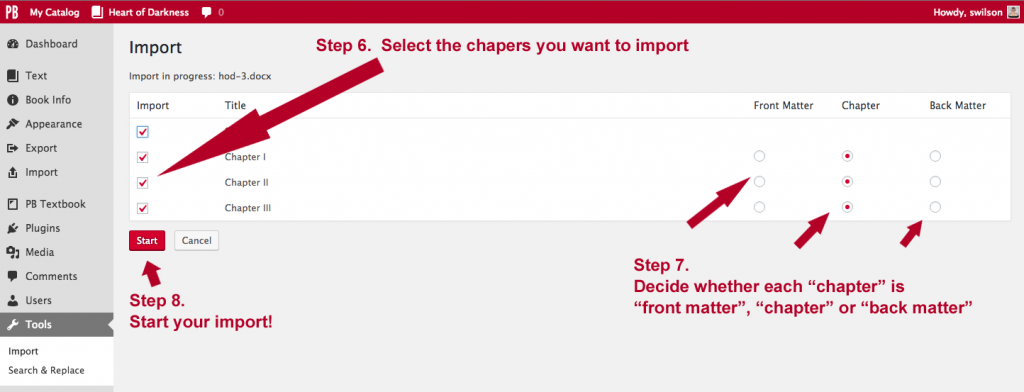
Select which chapters to import, what kind of content they are, and then click the Start button!
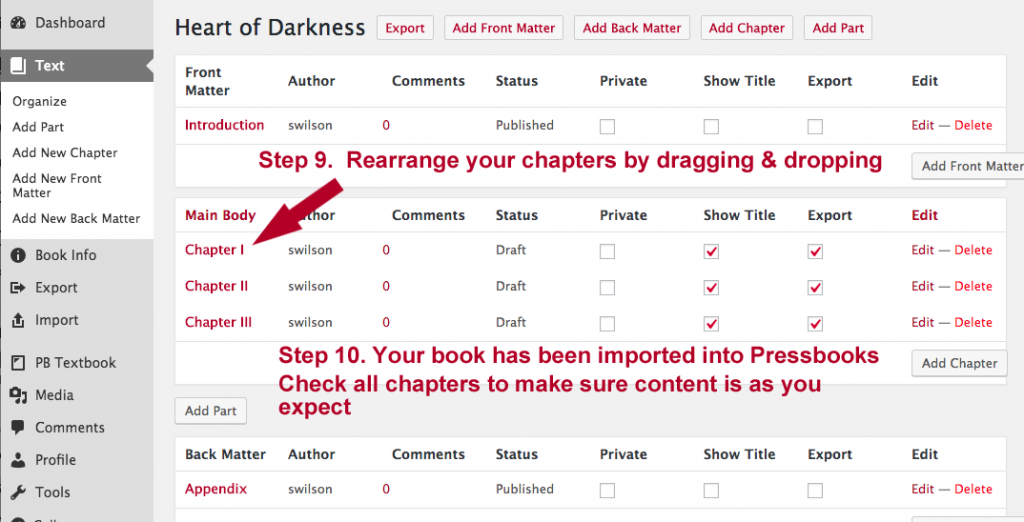
Steps 9 & 10: Rearrange your chapters (if necessary) and check them
Notes:
- Everything other than basic styling is stripped out by design… so fancy fonts and such won’t get imported. Italics, bold, etc. should.
- All chapters are imported as DRAFTs. A quick way to get this listed as published is: mark all the chapters Private, then revert to Public. This will make them “published”.
- All chapters assign a Chapter Author by default (usually, your username). You’ll have to edit each chapter and delete the Chapter Author in the Chapter Metadata section.